Dashboard: Profiles
The Profiles page manages reusable configurations that any number of projects can adopt. A profile comes in one of three kinds:
| Kind | What it bundles |
|---|---|
| Routing | the ordered policy list |
| Optimizer | the ordered list of optimizer steps and which of them are enabled |
| Security | content guardrail rules and PII redaction policies |
A project can be assigned one profile per kind, independently: routing from a profile, security custom, optimizer from another profile. See Projects for the assignment controls.
Navigate to /dashboard/profiles.
See Concepts: Routing for each routing policy's behaviour and parameters.
Profiles List
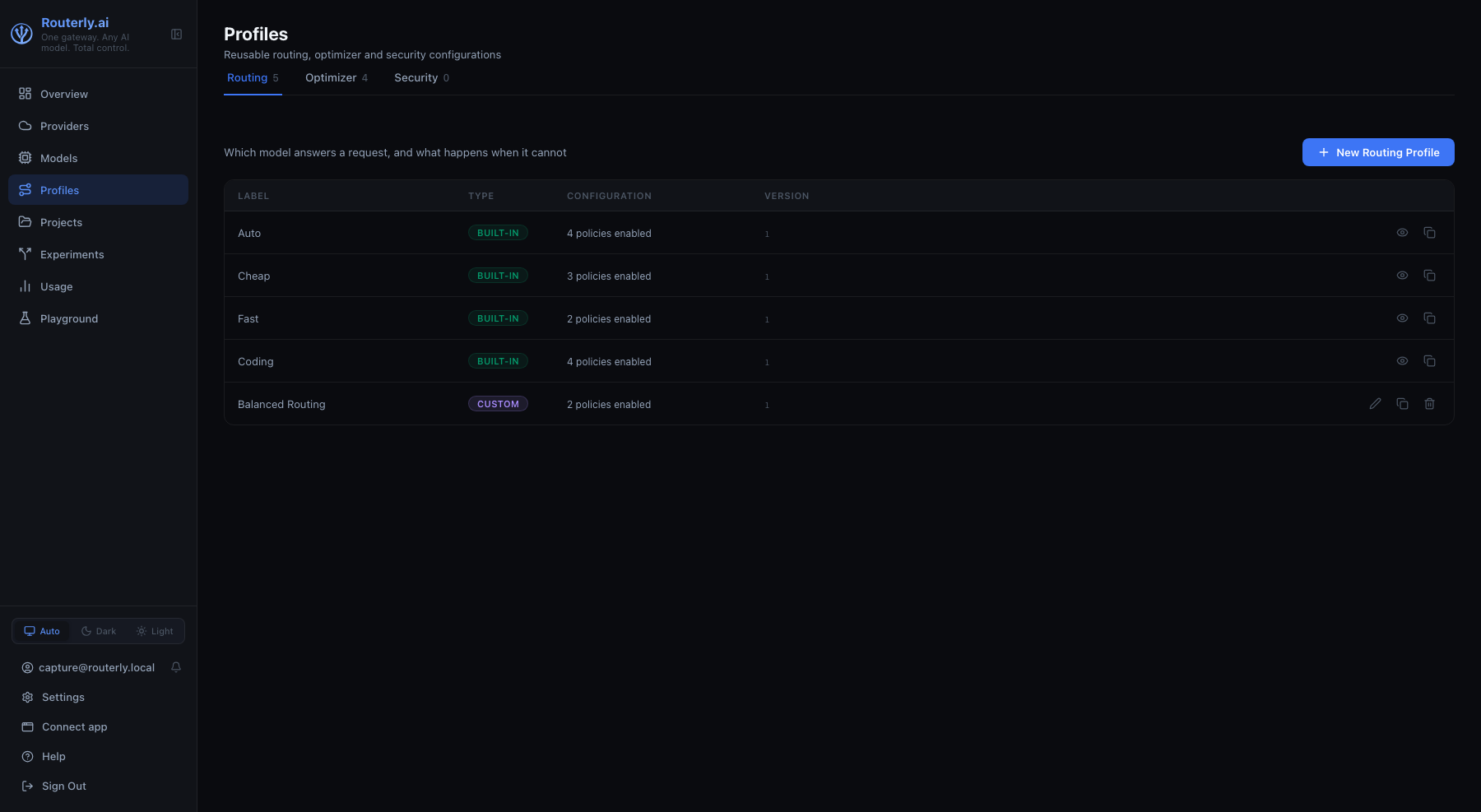
The page opens on three tabs, one per kind: Routing, Optimizer, Security. Each tab shows how many profiles it holds and lists only those, with a one-line reminder of what that kind configures. Routing is the tab the page opens on.
| Column | Description |
|---|---|
| Label | Display name of the profile |
| Type | Built-in (read-only) or Custom (user-created, editable) |
| Configuration | One-line summary of what the profile configures |
| Version | Increments by 1 on every edit |
A tab with no profiles shows a kind-specific empty state (for example
No security profiles yet.).
Routerly ships these built-in profiles:
- Routing: Auto, Cheap, Fast, Coding
- Optimizer: Safe, Balanced, Aggressive
Security ships no built-in profile. Guardrails and PII policies rewrite the request, so a project never inherits them from a preset it did not choose: every security profile is written by you, from scratch or by cloning one of your own.
Built-in profiles cannot be edited or deleted, so their row shows a View
(read-only) button instead of Edit. Custom profile rows show Edit and
Delete with profiles:manage. Every row has a Clone button with
profiles:manage.
Clicking a row opens the profile, in edit or view mode depending on the two above: the same page Edit and View open. Clone and Delete stay on their buttons.
Without profiles:read, the page shows a permission-denied empty state.
Without profiles:manage, every row is view-only and the create button is
hidden.
Creating a Profile
Each tab has its own create button, named after the kind it creates: New
Routing Profile, New Optimizer Profile, New Security Profile. It
opens /dashboard/profiles/new?kind=<kind>, one form per kind, headed the
same way. There is no kind to pick on the form: the three kinds share no
field beyond the label.
- Enter a Label
- Fill in the configuration (see the per-kind editors below)
- Click Create Profile
To create a profile of another kind, go back and use that tab's button: the stored configuration shape depends on the kind, so an existing profile never changes kind.
Cloning
The Clone button on a list row opens the same form pre-filled with that
profile's configuration and a <label> copy label, on the source profile's
kind. Nothing is written until Create Profile is clicked, so a clone can
be adjusted before it exists.
Editing a Profile
Click Edit on a custom profile row to open /dashboard/profiles/<id>.
Save Profile persists the change and bumps version by 1; Cancel
returns to the list without writing.
Built-in profiles open in the same page read-only: the fields are visible but not editable and no save button is shown. Clone one to customize it.
Routing configuration
- Policies:
health,context,capability,budget-remaining,rate-limit,semantic-intent,llm,performance,fairness,cheapest,model-preference. Drag to reorder, toggle Enabled, remove with the trash icon, or add one from the Add a policy... dropdown. A policy's advancedconfig(when present) is edited as raw JSON; invalid JSON blocks saving until fixed.
The selector and the fallback strategy are not editable from the dashboard:
the engine defaults (argmax and next-best) apply to every profile created
here. A profile that already carries other values keeps them when it is
edited or cloned, and the API still accepts
both fields.
Optimizer configuration
The list of installed optimizer steps, in execution order. Drag to reorder and toggle each step on or off. Steps that are installed but absent from the profile are listed after the configured ones, so enabling one is a single click.
Security configuration
- Content Guardrails:
regex,semantic,topicandmoderationrules, each with a target (request,responseorboth) and per-target actions. Semantic, topic and moderation rules need a judge model, picked from the models configured on this instance - PII Policies: which entities to redact and on which target
Both editors are the same ones the project Security tab uses, so a profile and an inline project configuration are always edited identically.
Deleting a Profile
Click Delete (trash icon) on a custom profile row. A confirmation dialog warns the action cannot be undone.
Delete can fail with:
- In use: a project currently has this profile assigned. Unassign it from every project (switch those projects back to Custom, or assign a different profile) before deleting.
- Built-in: built-in profiles cannot be deleted at all; the Delete button is not shown for them.
Related
- Concepts: Routing: Routing Profiles: what a routing profile is, built-in presets, selectors, fallback strategies
- API: Profiles: endpoint reference
- CLI: profiles: the same operations from the terminal
- Dashboard: Projects: assigning profiles to a project